Session Lifecycle
Each agent session moves through these stages:
Initializing → Cloning → Advancing → Running → Completed / Failed
                                        ↕
                              Waiting for Input
                              Waiting for Approval
Initializing
The environment is being set up and prepared. This typically takes a moment.
Cloning
Your repositories are being cloned and dependencies installed in the agent’s environment.
Advancing
The pipeline is determining the next step to execute. This happens between pipeline stages (e.g., after planning is done and before implementation starts).
PR Eligible
The session has completed and file changes are ready. You can review the changes and create a pull request from the session view.
Running
The AI agent is actively working through a pipeline stage (planning, implementing, reviewing, or verifying — depending on the mode). During this phase:
- You can monitor progress in the web app
- The agent may pause to ask you questions
- Pipeline stages execute sequentially
The agent needs clarification from you. When this happens, the session pauses and you’ll see the agent’s question(s) in the UI. The agent may ask multiple questions at once. Common questions include:
- “Which features should I focus on?”
- “How does the login flow work for admin users?”
- “Should I include negative test cases?”
Answer the question(s) and the agent resumes automatically.
Waiting for Approval
The agent has completed a pipeline stage and is waiting for your approval before proceeding to the next stage. This lets you review intermediate results (like a plan) before the agent continues to implementation. Approve to continue or cancel the session.
Completed
The agent has finished its work:
- Tests are generated and committed
- A PR has been opened to your repository
- You can review the results and the PR
Failed
Something went wrong during the session. This could be:
- The application under test was unreachable
- Tests couldn’t be verified (persistent failures)
- An unexpected error occurred
Check the session details for error information and try again.
Cancelled
You manually stopped the session before it completed.
Standard vs Deep Mode Sessions
How much interaction a session requires depends on the mode:
- Standard mode — fully autonomous. The agent runs start-to-finish without requiring your input. You can kick off multiple sessions in parallel and come back to finished results.
- Deep mode — the first step (planning) requires your engagement. The agent presents a plan and waits for your approval. Once you approve, the remaining steps run independently.
Practical implication: You can launch 10 Standard sessions in parallel and walk away. For Deep sessions, review and approve the plan for each, then leave them to complete on their own.
Interacting with Sessions
Answering Questions
When the agent asks a question, the session enters a Waiting for Input state and you’ll see the question(s) in the session view. Type your answer and submit — the agent picks up where it left off with your input. Multiple questions may be pending at once.
Provide detailed answers. The more context you give the agent, the better the results.
Approval Gates
Between pipeline stages, the session may enter a Waiting for Approval state. This gives you a chance to review what the agent produced (e.g., a plan or a set of detected flows) before it proceeds to the next stage. Click approve to continue, or cancel if you want to adjust.
Viewing Sessions
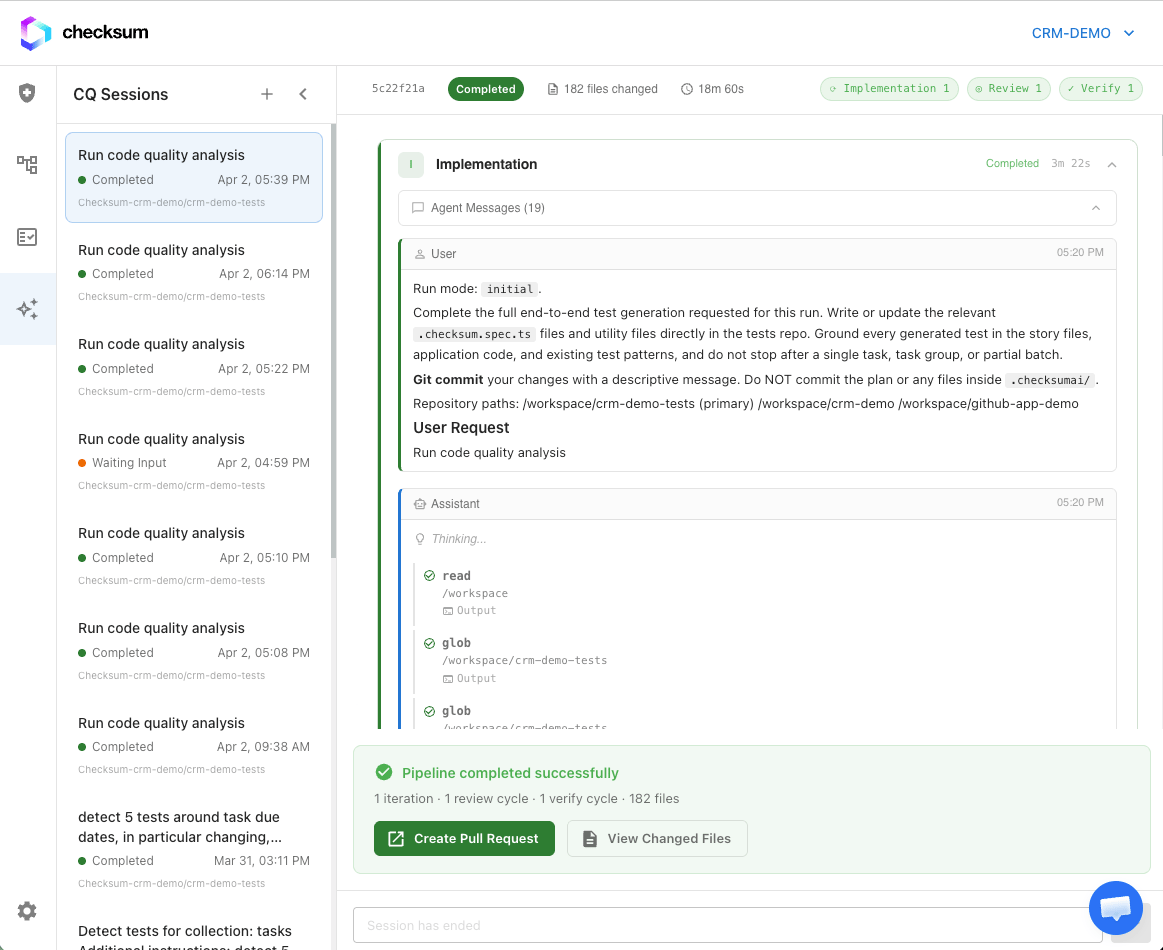
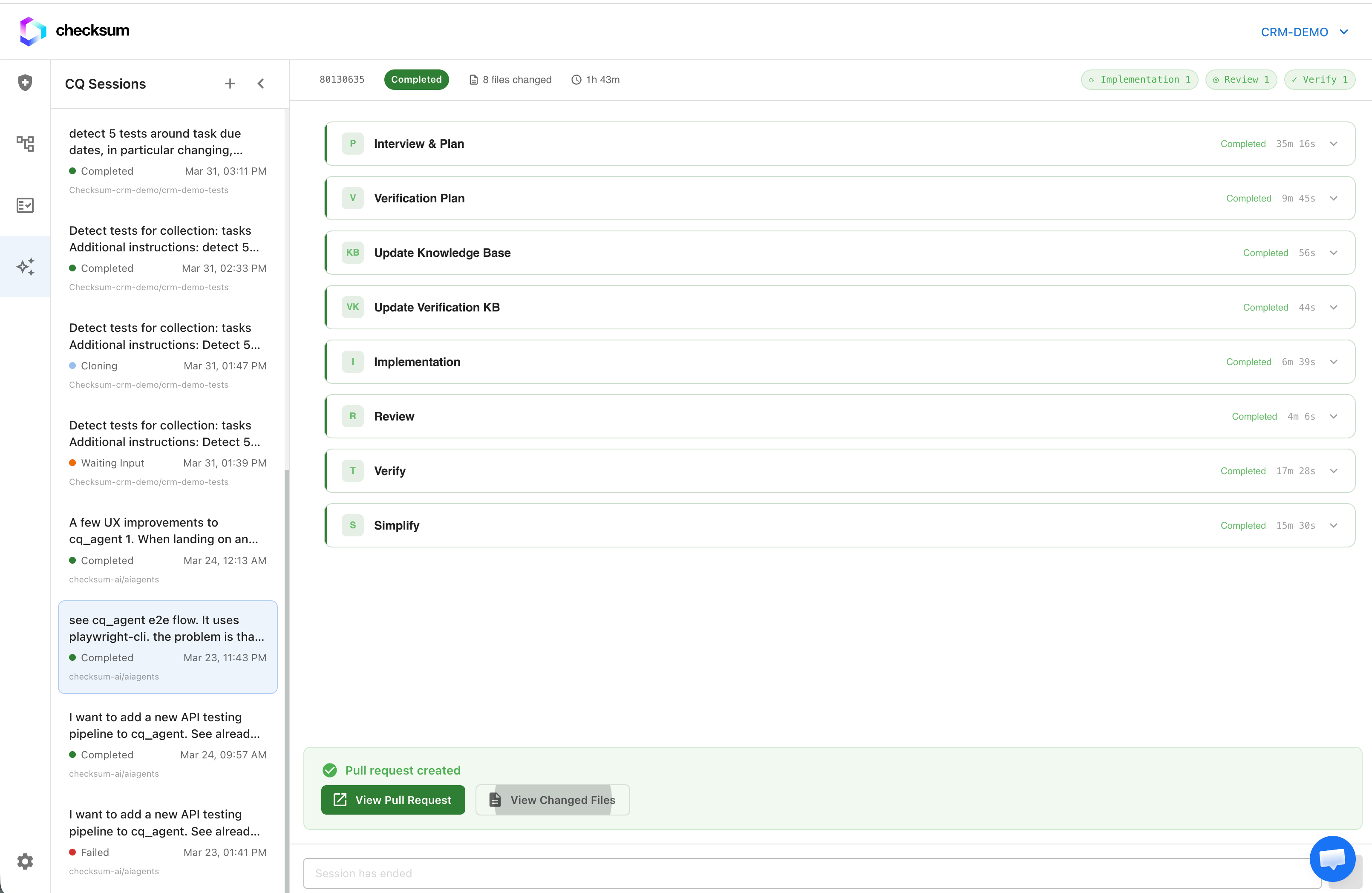
You can view all sessions for your project in the Checksum web app. Each session shows:
- Status — Current lifecycle stage
- Pipeline stages — Which stages have completed and which are next
- Duration — How long the session has been running
- Results — Generated files and PR link (when completed)
What Triggers a Session?
Sessions are created whenever you:
- Detect tests — from a collection’s “Auto-detect test flows” button
- Generate tests — from a test flow’s “Generate” button
- Heal tests — when auto-healing is triggered (manually or from CI)
Each operation creates its own independent session.
Next Steps