Connecting Your Repositories
After installing the GitHub App or configuring GitLab, you need to select which repositories Checksum should use.- Tests repository — Select the repository where your Playwright tests live. Checksum opens pull requests here when new tests are generated or existing tests are healed.
- Code repository (optional) — Select your application source code repository. Checksum reads this to improve test detection accuracy by analyzing your app’s routes, components, and UI interactions.
GitHub Integration
Installing the Checksum GitHub App
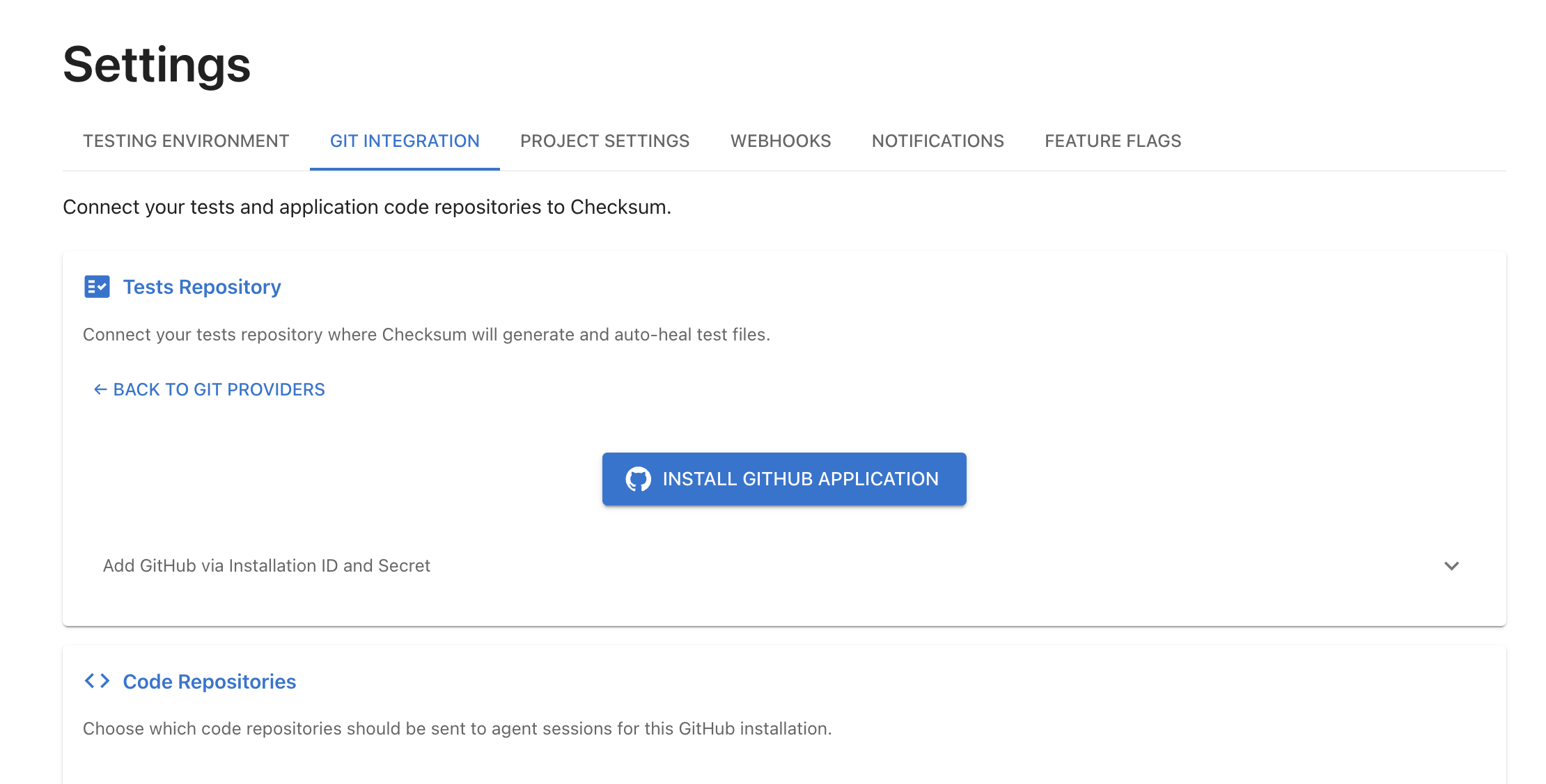
- Go to Settings → Git Integration in the Checksum web app
- Click Install GitHub App
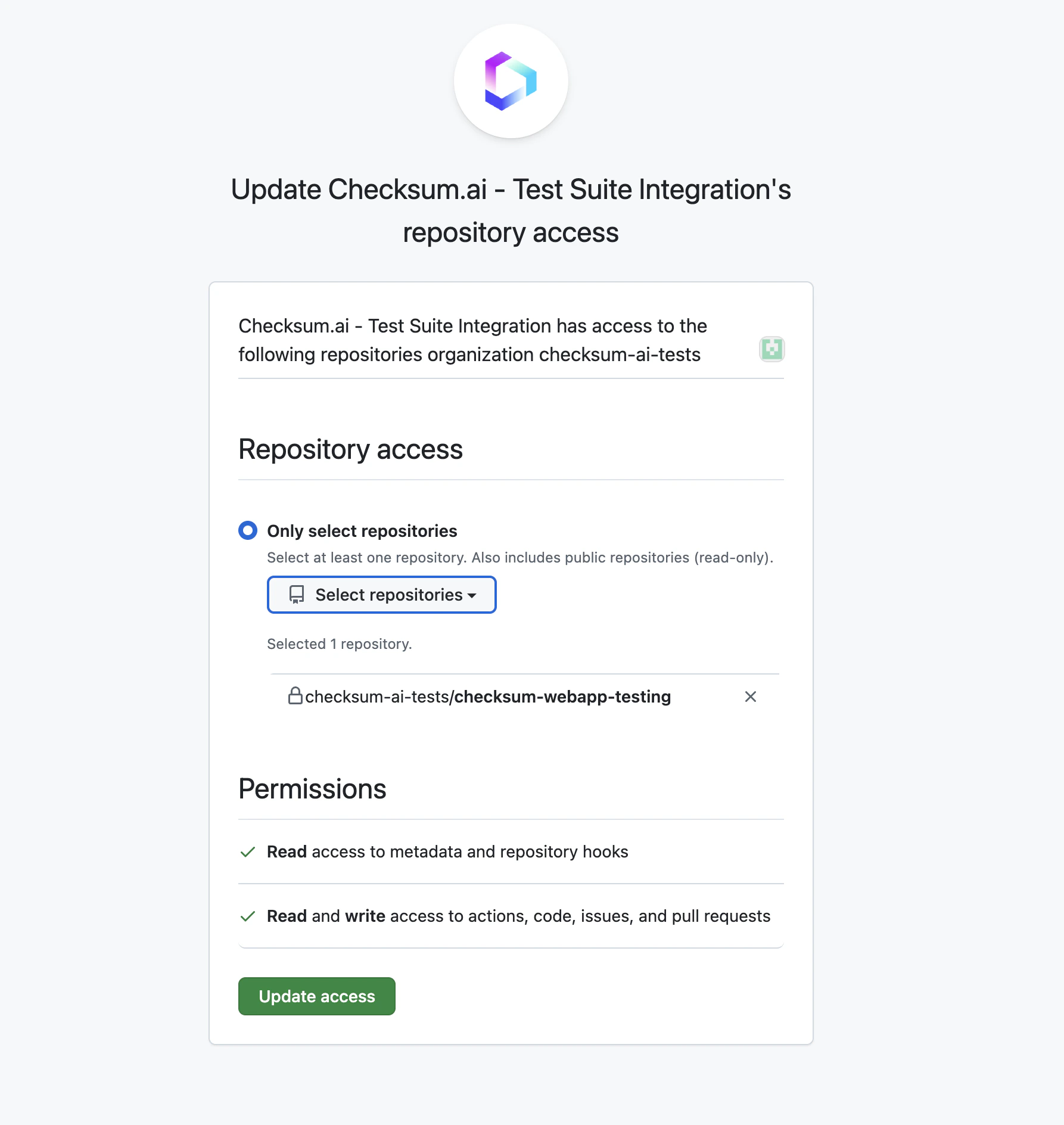
- You’ll be redirected to GitHub to authorize the Checksum app
- Select which repositories to grant access to
- Complete the installation
Selecting Repositories
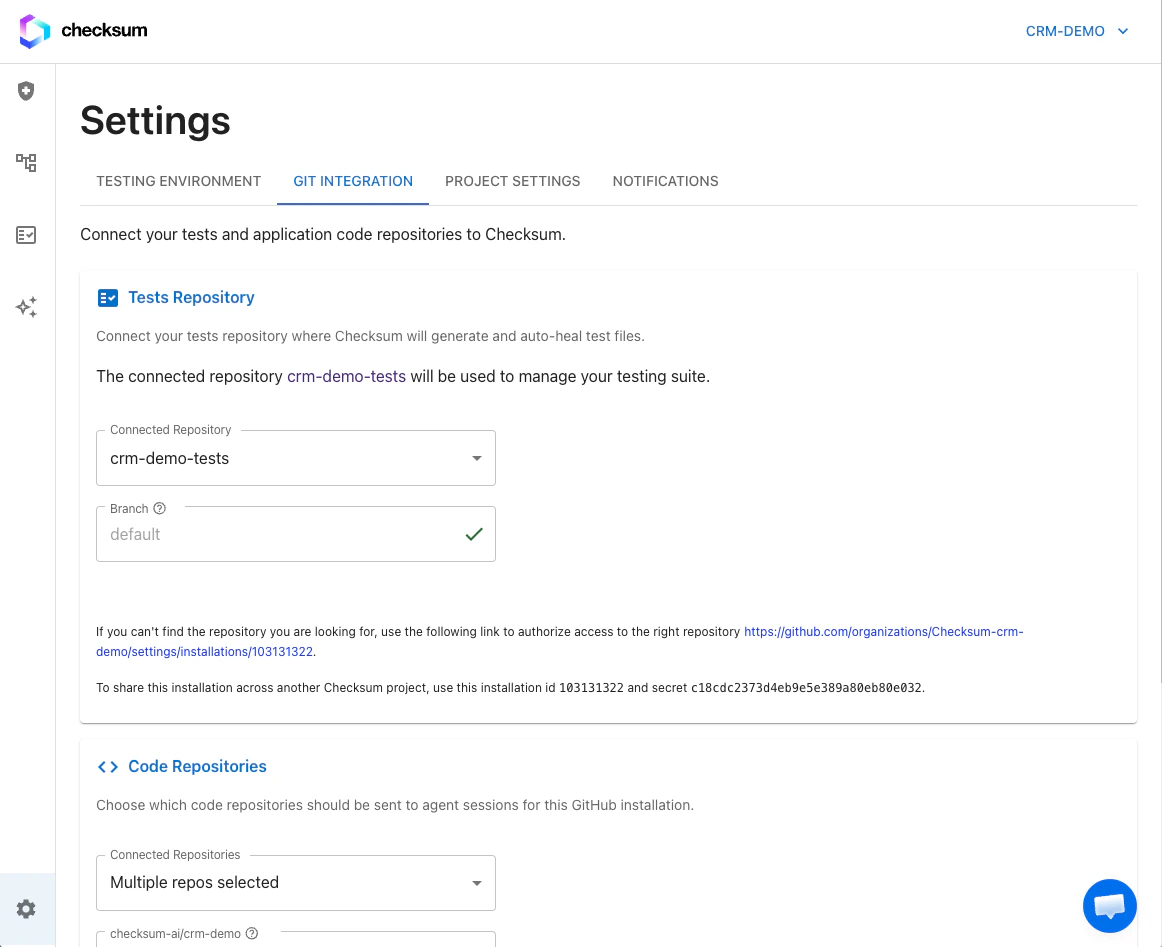
After installing the GitHub App, select the repositories Checksum should connect to:- Go to Settings → Git Integration
- Under Tests Repository, select the repository that contains (or will contain) your Playwright tests
- Optionally, under Code Repository, select the repository that contains your application source code
Generate tests from a pull request (GitHub)
On any PR in a connected repository, team members with write access can comment:GitLab Integration
- Go to Settings → Git Integration in the Checksum web app
- Select GitLab
- Enter your GitLab access token
- Select the projects to connect
Integration Status
Your integration status is shown on the Settings page:| Status | Meaning |
|---|---|
| Active | Integration is connected and working |
| Not Installed | No GitHub App or GitLab token configured |
| No Repositories | App is installed but no repositories were granted access |
| No Selected Repository | Repositories are available but none has been selected yet |
Changing or Removing an Integration
To change your connected repositories:- Go to Settings → Git Integration
- Update your repository selection
- Go to Settings → Git Integration
- Click Remove Integration
Removing a git integration will disable test generation and auto-healing, since Checksum can no longer open PRs to your repository.