How It Works
- A test runs and a step fails (e.g., a button can’t be found)
- The CLI’s AI analyzes the current page state — what’s visible, what changed
- It attempts to recover: finding the element by alternative means, waiting for the right condition, or adapting to the new UI
- If recovery succeeds, the test continues and the step is marked as healed
- If recovery fails, the test is marked as failed and escalated to auto-healing
What Auto-Recovery Can Fix
| Issue | How It Recovers |
|---|---|
| Changed selectors | Finds the element using alternative attributes (text, role, position) |
| Timing issues | Waits for the right conditions before proceeding |
| Minor UI changes | Adapts to layout or text changes that don’t affect the flow |
What Auto-Recovery Can’t Fix (But Auto Healing can!)
Some issues require deeper analysis and code changes:- Major flow changes (steps added or removed)
- Completely redesigned pages
- Changed business logic
- New authentication requirements
Viewing Recovery Results
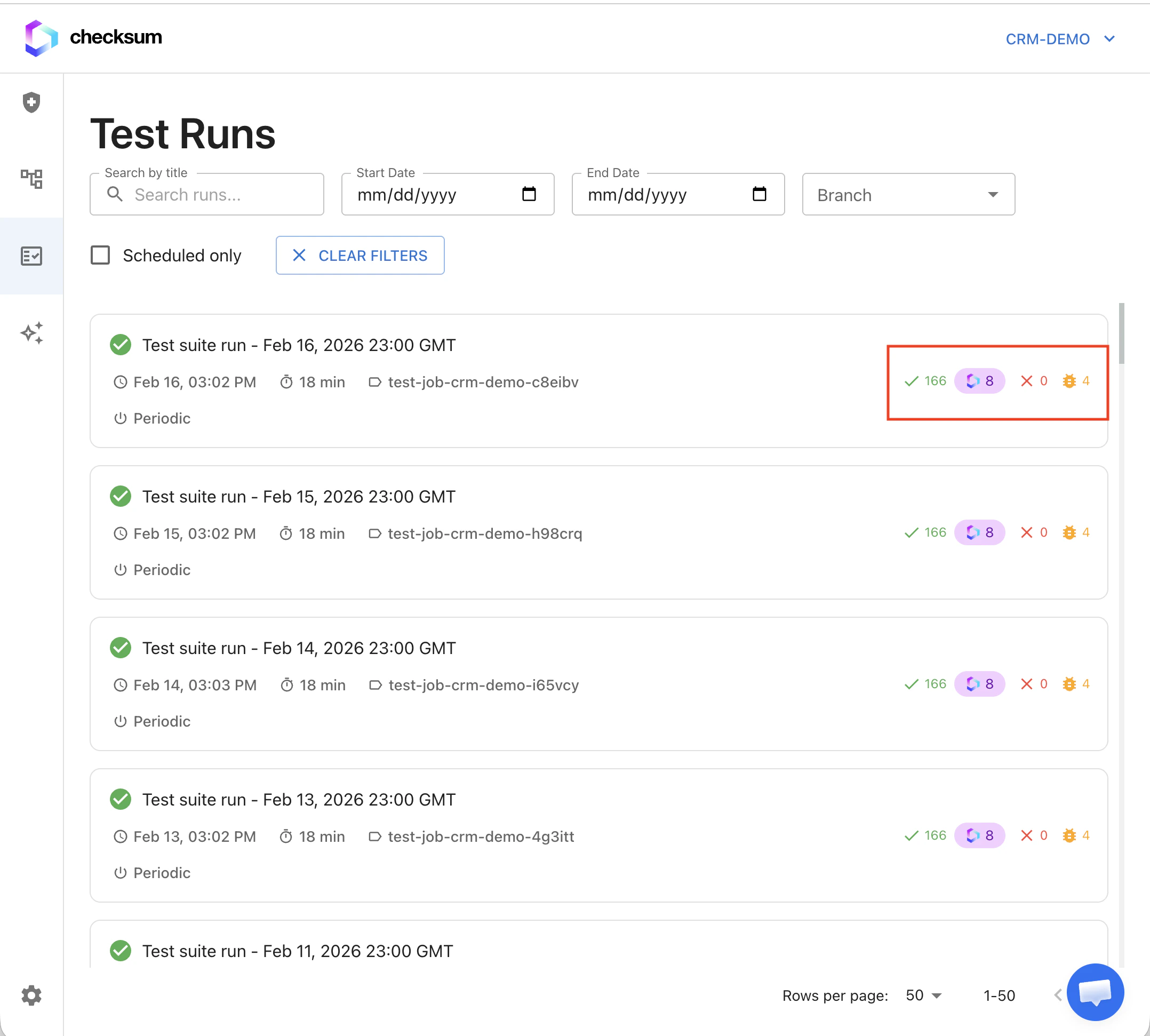
In your test run results, recovered tests show up in the healed count:| Result | Meaning |
|---|---|
| Passed | Test passed without any recovery needed |
| Healed | Test had a failure that was automatically recovered |
| Failed | Test failed and couldn’t be recovered |
Enabling Auto-Recovery
Auto-recovery runs when your project’s run mode is set to Auto-Heal. This is controlled by therunMode option in checksum.config.ts:
| Value | Behavior |
|---|---|
RunMode.Normal | Tests run normally and fail on the first error — no recovery (default) |
RunMode.Heal | Failing steps automatically attempt recovery before being reported as failures |
runMode: RunMode.Heal in checksum.config.ts to enable it. See the runMode reference for full details.