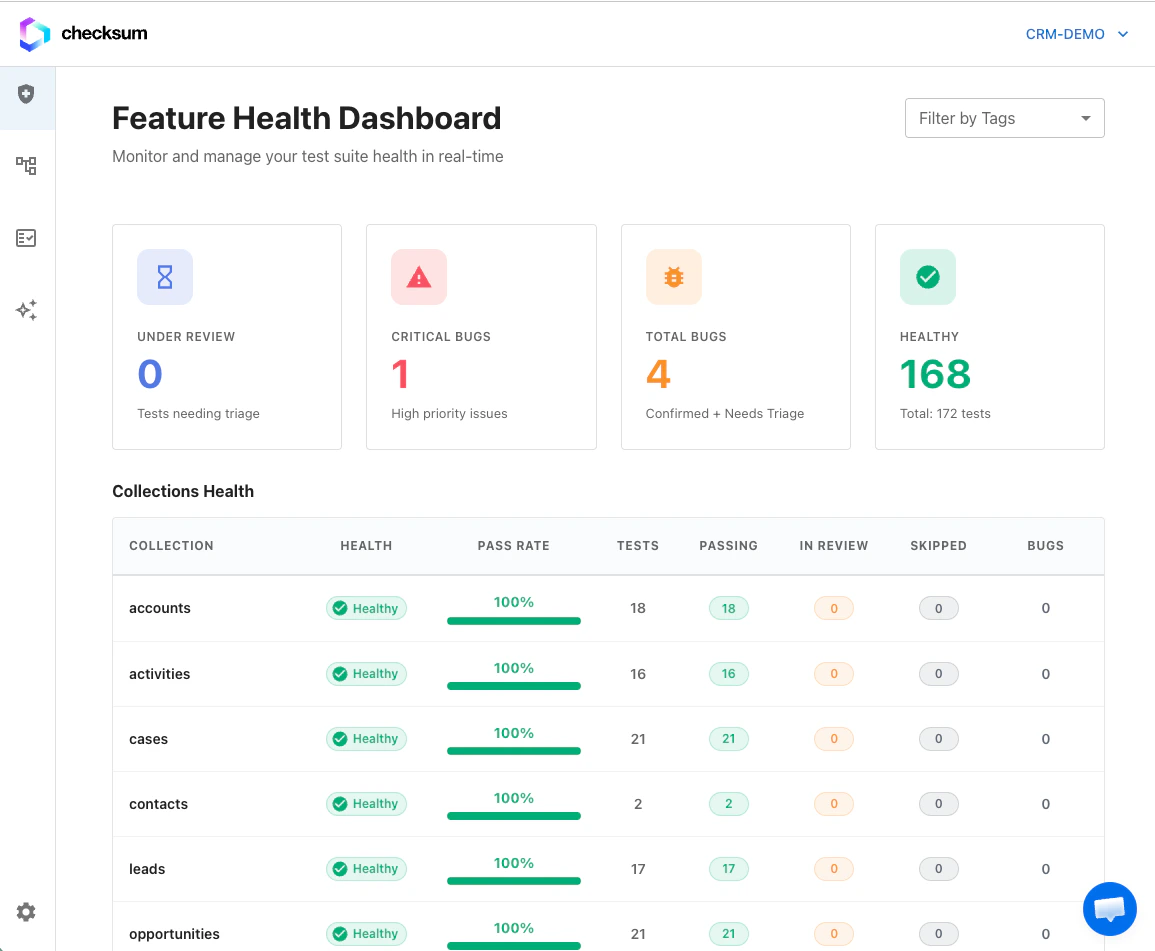
The Feature Health Dashboard gives you a bird’s-eye view of your test suite. Tests are organized into bugs (grouped failure entities) and tests under review. Global filters apply across both sections so you see one consistent slice of the suite.
Dashboard sections
| Section | What it shows |
|---|
| Bugs | Grouped bug entities — each bug can affect multiple tests |
| Tests under review | Tests that need triage (new failures, recently changed health) |
Use Cmd/Ctrl+Click (or middle-click) on bug or test links to open them in a new browser tab.
Suite health
Health is calculated from recent test run history — not just the latest run:
| Status | Meaning |
|---|
| Passing | Test consistently passes across recent runs |
| Failing | Test is consistently failing |
Bug entities
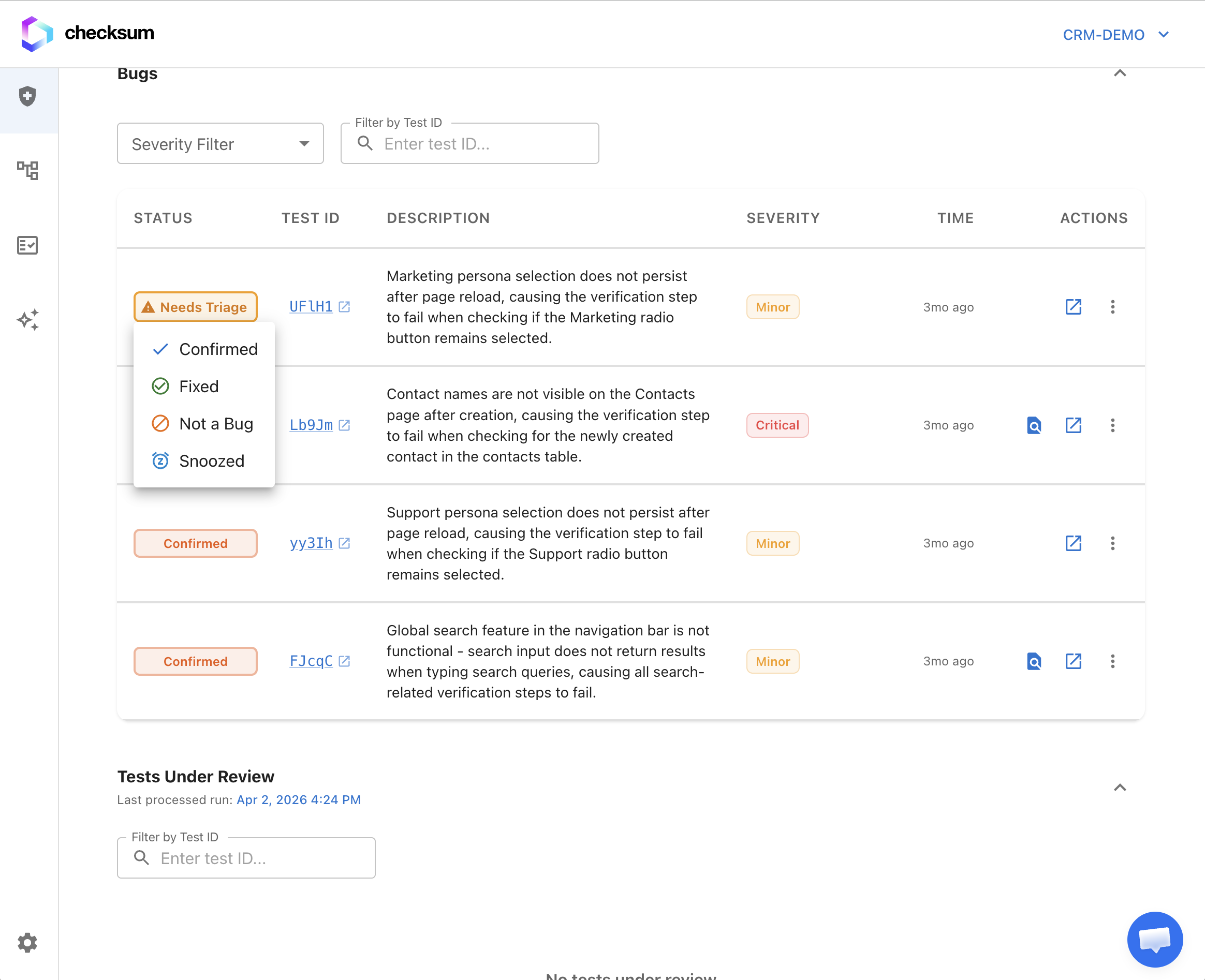
A bug entity groups related failing tests under one trackable ID (for example BUG-42). This replaces managing each failing test in isolation — you triage, comment, and resolve at the bug level.
Bug status workflow
| Status | Meaning |
|---|
| Needs Triage | New — not reviewed yet |
| Confirmed | Reviewed and accepted as a real issue |
| Fixed | Resolved in code |
| Not Bug | False positive |
| Snoozed | Acknowledged but deprioritized (from any status) |
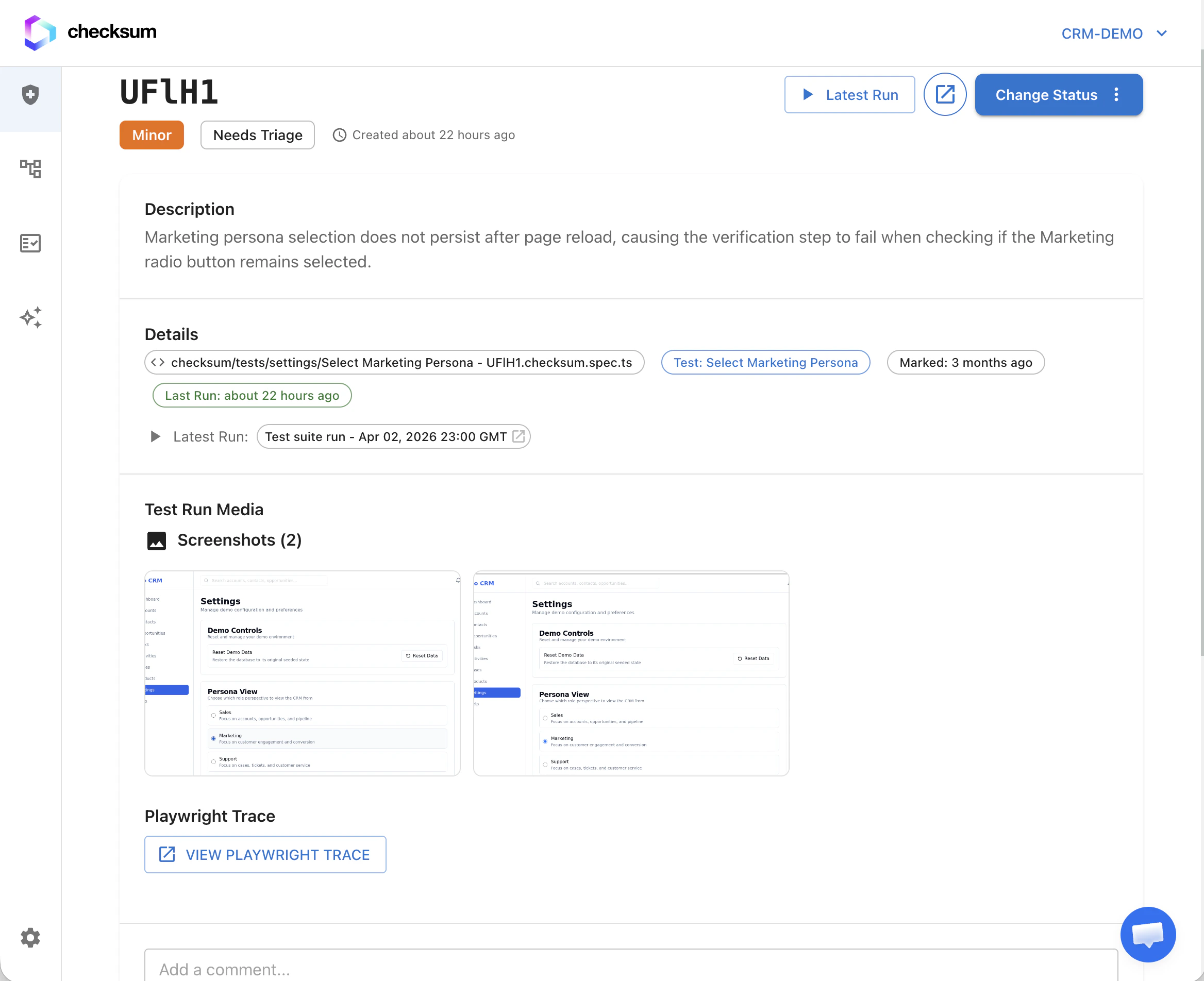
Bug detail page
Each bug includes:
- Affected tests (with recent run history per test)
- Failure messages, screenshots, and traces
- Comments and attachments for team collaboration
- Links to related runs and healing sessions
Grouping and linking tests
From Under review, you can:
- Mark as bug — create a new bug entity (optionally with severity and description)
- Link to existing bug — attach one or more selected tests to an existing bug entity
- Mark as clean — clear the failure without creating a bug
Bulk actions work on multi-selected rows in the under-review table.
Resolve a bug
Resolve removes the bug entity and clears @bug annotations from every affected test file in your tests repository (opening a PR when annotations need to be removed from git). Use this when the underlying product issue is fixed.
From a bug entity, use Copy all affected test IDs to copy every Checksum test ID on that bug — useful for CI grep filters or support tickets.
Agent actions
From a bug row or expanded bug, you can start healing or other agent workflows on the grouped failure set (same agent sessions as elsewhere in the product).
Per-test actions
On any test row (under review or inside a bug):
- Open the latest test report or trace
- Start an agent session for a single test (when your project has agent workflows enabled)
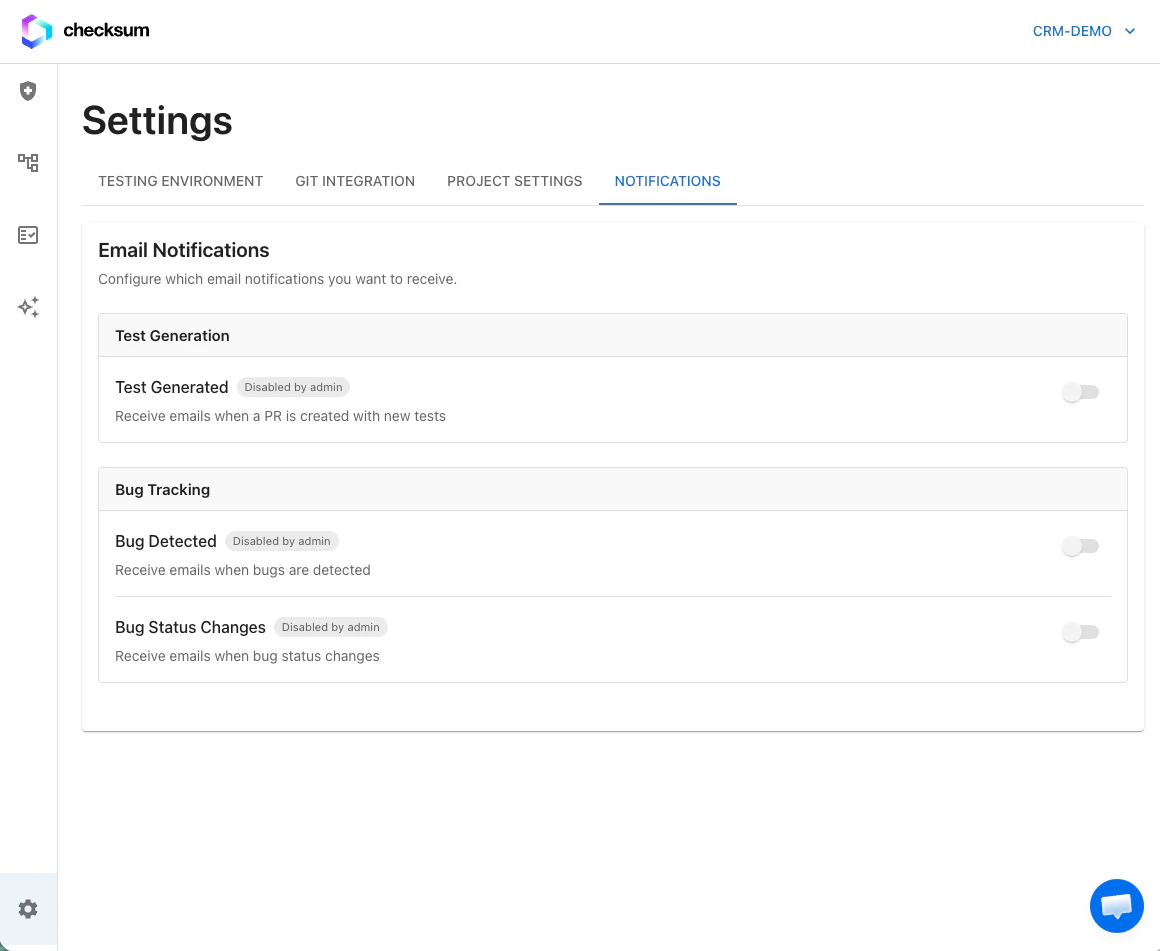
Notifications and reports
Route health events to Slack, Teams, Discord, Google Chat, or email via Settings → Integrations (Notification Connectors section; workspace admin required).
| Category | Events |
|---|
| Reporting | Health Report Ready |
| Bug tracking | Bug Detected, Bug Status Changed |
| Test runs | Test Run Completed |
| Auto-heal | Auto-Heal Started, Auto-Heal Completed |
https://app.checksum.ai/#/health-dashboard/bug/BUG-42).
Segment reports by tags to get focused views (for example Checkout vs Admin).
Activity history
The dashboard records health changes over time: when tests started failing, when they were healed, when bugs were triaged, and pass/fail trends. Use this to see which areas of your app drive the most maintenance.
Next Steps